
|
|
This section describes how to configure calculation of Summations data based on the controller's online data. For more detail information, refer to Summations Log.
To accomplish the task described above, we have to take some basic steps, including
First of all, you will require the Data Set Manager plug-in in MiScout Desk to enable collecting Summations from the controller. For more detail information, refer to Configuring Plug-ins.
Follow the steps below to create a data set:
 ;
; ;
;Now we need to assign a created Summations data set to the controller named Unit 01. To do this, follow the steps below:
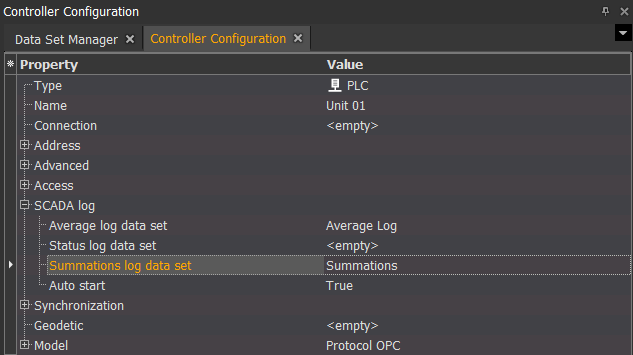
After the Summations data set is created and assigned to the controller called Unit 01, the next step to take is data items configuration, for which we want to calculate summations.
Let's first configure Service summation, which is responsible for calculating counters and is assigned to the digital channels. In our case, we will configure the summation responsible for the turbine clockwise yawing. MiScout database already contains such summation named as Yaw Motor CW summation.
Therefore, for successful configuring of Yaw Motor CW summation, take the steps below:
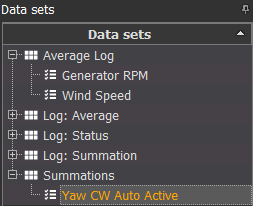
Note. You can use  filter to simplify the way of searching the required items by simply typing the required word in the appropriate field.

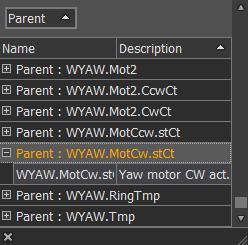
In the situation, when a specific item required for summation is not available in the database, it can be created by a user. To do this, we need to create Parent (the required item) which will contain fields within responsible for the count, active time and reset time. Let's create the Nacelle Fan item as well as the corresponding data classes for this item in the following way:
 to see all available data classes;
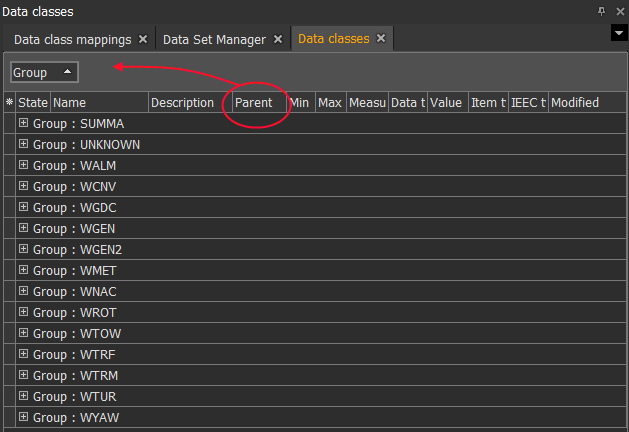
Once the Parent is created, we can proceed with creating fields responsible for the count, active time and reset time in the following way:
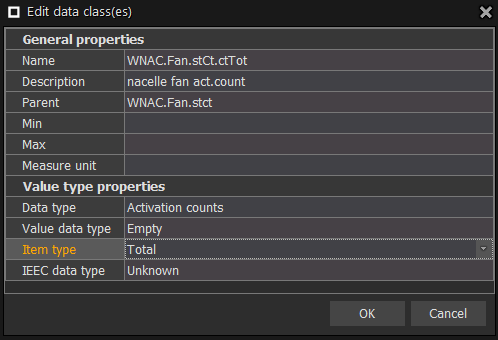
Do the same for the total active time and reset time. Having finished the configuration and applied all changes, data classes should appear in the Data classes panel as on the picture below.

To be able to add a recently created data class to Summations data set, we need to create a mapping. For more detail instructions, refer to Create Data Mapping .
Now you can add the Nacelle Fan item to Summations data set and specify the created data class WNAC.Fan.stct as was already done with Yaw CW Auto Active.
Now let's create Energy summation by following the steps below:
Do the same for Grid Reactive Power by selecting total produced reactive power WTUR.TotEgyReact.mag.f in the list of existing data classes.
Apply the changes by clicking  in the upper left corner, so they will be saved on the server.
After configuring the items, you will be able to calculate Service and Energy summations based on the configured data received from the controller.
The next manual section Configure Status and Event Logs chapter will provide you with the instructions on how to configure calculation of Status Log and Event Log from the controller.